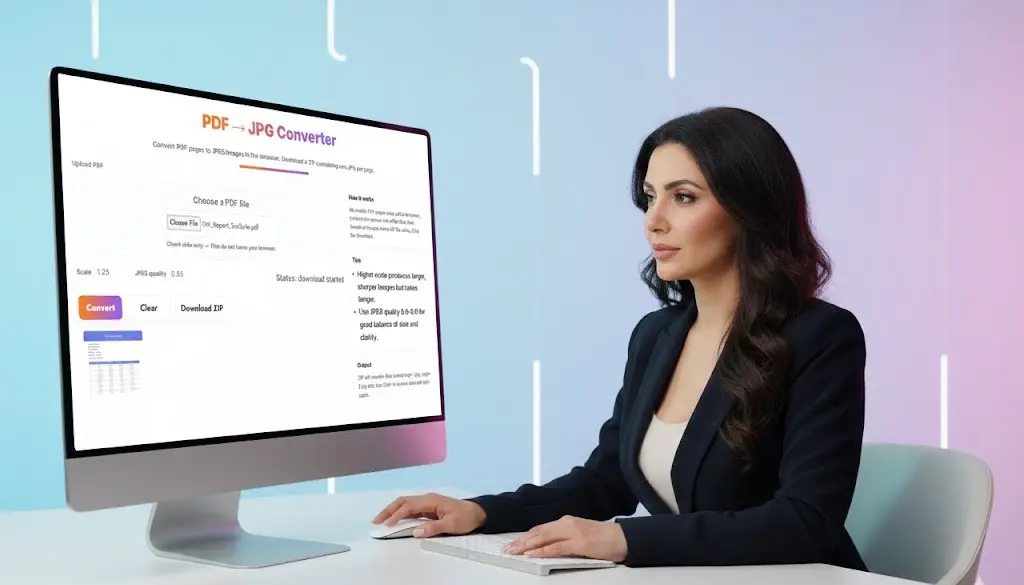
PDF to JPG Converter – Convert PDF to JPEG Images Online Free
Our PDF to JPG converter is a powerful, free online tool that lets you convert PDF pages to JPEG images instantly. Whether you need to convert PDF to JPG for a single document or extract multiple pages from PDF to JPG format, this PDF to JPG converter processes everything directly in your browser. Convert PDF files to high-quality JPG images without uploading to any server, ensuring complete privacy and security for your documents.
PDF → JPG Converter
Why Choose Our PDF to JPG Converter?
100% Client-Side PDF to JPG Conversion
Unlike other online PDF to JPG converters that require uploading your files to remote servers, our tool performs all PDF to JPG conversion locally in your browser. When you convert PDF to JPEG using our tool, your files never leave your device, making it the safest way to convert PDF documents to JPG images, especially for sensitive or confidential documents.
Key Features of Our PDF to JPG Converter Tool
Extract All PDF Pages to Individual JPG Images Our PDF to JPG converter automatically extracts every page from your PDF document and converts each page to a separate JPG file. Perfect when you need to convert multi-page PDF to JPG format or extract specific images from PDF files.
Adjustable Image Quality Settings Control the quality of your converted JPG images with our JPEG quality slider (0.6-0.9 recommended). Higher quality settings produce sharper, clearer images but result in larger file sizes. Lower quality settings create smaller files perfect for web use or email attachments.
Customizable Scale Options Adjust the scale parameter to control the resolution of your converted PDF to JPG images. A scale of 1.25 provides an excellent balance between image quality and file size, while higher scales create larger, more detailed images ideal for printing.
Instant ZIP Download After converting PDF to JPG, all images are automatically bundled into a convenient ZIP file for easy download. Each image is named sequentially (page-1.jpg, page-2.jpg, etc.) making it simple to organize and identify your converted pages.
No Software Installation Required Convert PDF to JPG online without downloading or installing any software. Our web-based PDF to JPG converter works on any device with a modern browser, whether you’re on Windows, Mac, Linux, or mobile devices.
Completely Free with No Limits Enjoy unlimited PDF to JPG conversions with no hidden fees, watermarks, or registration requirements. Convert as many PDF files to JPG as you need, whenever you need them.
How to Convert PDF to JPG Online – Step-by-Step Guide
Converting your PDF documents to JPG images is incredibly simple with our tool:
Step 1: Upload Your PDF File Click “Choose File” to select the PDF document you want to convert to JPG format. You can convert any standard PDF file, including scanned documents, reports, presentations, and e-books.
Step 2: Adjust Quality Settings Use the JPEG quality slider to set your preferred image quality. For screen viewing and web use, 0.7-0.8 works well. For printing or archival purposes, use 0.85-0.9.
Step 3: Set Scale Parameter Choose your desired scale factor. The default 1.25 scale produces high-quality images suitable for most purposes. Increase to 1.5 or higher if you need extra detail for printing large formats.
Step 4: Convert PDF to JPG Click the “Convert” button to begin the PDF to JPG conversion process. Our tool will render each PDF page and convert it to a JPEG image in your browser.
Step 5: Download Your Images Once conversion is complete, click “Download ZIP” to save a compressed archive containing all your converted JPG images. Extract the ZIP file to access individual page images.
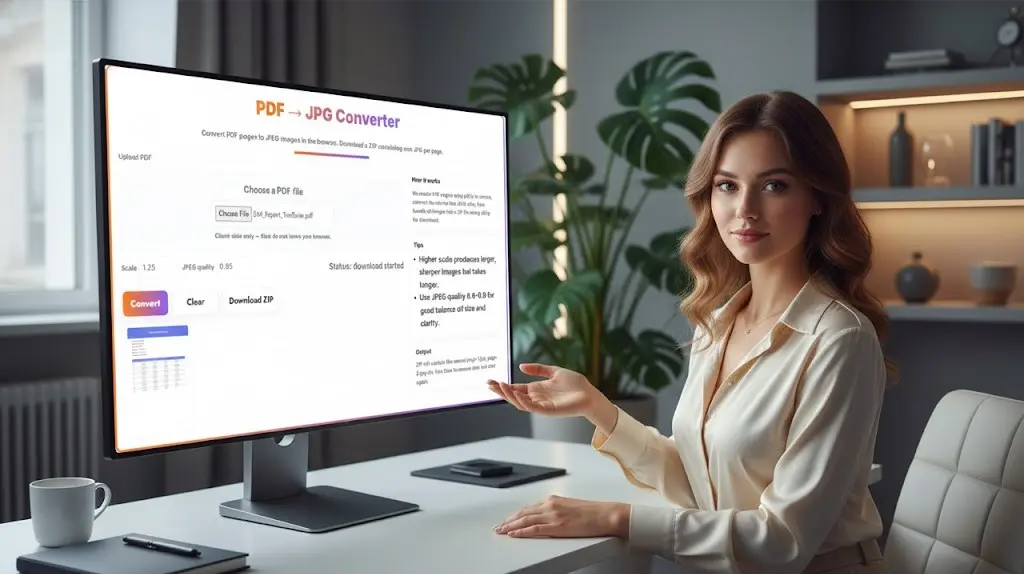
Common Use Cases for PDF to JPG Conversion
Business and Professional Applications
- Extract Pages from Business Documents Convert specific pages from PDF reports, proposals, or presentations to JPG format for inclusion in other documents, websites, or marketing materials. When you convert PDF to JPG, it becomes easier to share individual pages without sending entire documents.
- Social Media Sharing Social media platforms often display images better than PDF files. Convert PDF infographics, flyers, or announcements to JPG format for better engagement on Facebook, Instagram, LinkedIn, and Twitter.
- Email Optimization Email clients sometimes struggle with PDF attachments. Convert PDF to JPG to create smaller, more compatible attachments that display inline in email messages without requiring additional software.
Educational and Academic Uses
- Extract Textbook Pages Students and educators can convert PDF textbook pages to JPG images for creating study materials, presentations, or digital flashcards. Converting PDF to JPG makes it easier to annotate and share specific pages.
- Create Image-Based Study Guides Convert PDF lecture notes, handouts, or study materials to JPG format to incorporate into digital study guides, PowerPoint presentations, or online learning platforms.
Creative and Design Projects
- Extract PDF Graphics for Design Work Graphic designers often need to extract images or pages from PDF files. Our PDF to JPG converter lets you convert PDF design mockups, artwork, or layouts to editable image formats.
- Create Thumbnails from PDF Documents Convert PDF pages to JPG to create preview thumbnails for document libraries, websites, or content management systems. JPG thumbnails load faster and are more universally compatible than PDF previews.
Technical Specifications and Settings Guide
Understanding Scale Settings
The scale parameter controls the resolution of your converted JPG images. Here’s how different scale values affect your output:
Scale 1.0: Basic resolution, smallest file sizes, suitable for quick previews or low-quality web use
Scale 1.25 (Recommended): Balanced resolution, good quality for screen viewing and general use
Scale 1.5: High resolution, excellent for professional documents and moderate printing
Scale 2.0: Very high resolution, ideal for large format printing or detailed artwork
Higher scale values significantly increase processing time and file size. Start with 1.25 and increase only if you need more detail.
JPEG Quality Settings Explained
JPEG quality ranges from 0.0 to 1.0, affecting both image clarity and file size:
0.5-0.6: Low quality, small files, suitable only for thumbnails
0.7-0.8: Good quality, moderate file sizes, ideal for web pages and screen viewing
0.85-0.9: High quality, larger files, recommended for professional documents and printing
0.9-1.0: Maximum quality, very large files, best for archival or high-end printing
For most users, JPEG quality of 0.85 combined with scale 1.25 provides the best balance of image quality and file size.
How Our PDF to JPG Conversion Technology Works
Our PDF to JPG converter uses a sophisticated three-step process:
PDF Rendering: We use pdf.js, Mozilla’s powerful PDF rendering library, to read and parse your PDF document directly in the browser.
Canvas Conversion: Each PDF page is rendered onto an HTML5 canvas element at your specified scale, maintaining all visual elements, text, and graphics.
JPEG Encoding: The canvas content is encoded as JPEG data at your chosen quality level, then packaged into downloadable image files.
This entire process happens client-side in your browser, ensuring your PDF files never need to be uploaded to external servers.
Benefits of Converting PDF to JPG Format
Universal Compatibility
JPG (JPEG) is the most widely supported image format across all devices, platforms, and applications. When you convert PDF to JPG, you create images that can be viewed on any device without requiring special PDF reader software. JPG images work seamlessly on smartphones, tablets, computers, and even older devices that may struggle with PDF files.
Easier Editing and Manipulation
Unlike PDF files, JPG images can be easily edited in virtually any image editing software. Convert PDF to JPG when you need to crop, resize, adjust colors, add filters, or make other modifications to your document pages. Image editors like Photoshop, GIMP, and online tools all work perfectly with JPG files.
Better Web Performance
Websites load JPG images faster than embedded PDFs. If you need to display document pages on a website, converting PDF to JPG results in faster page load times, better mobile compatibility, and improved user experience.
Simplified Sharing
Sharing individual pages from a PDF document is easier when you convert PDF to JPG. Rather than sending an entire multi-page PDF, you can share specific pages as JPG images via email, messaging apps, or social media.
Reduced File Sizes
With proper quality settings, converting PDF to JPG can significantly reduce file sizes, especially for scanned documents or image-heavy PDFs. Smaller files are easier to store, share, and upload to cloud services or websites with file size restrictions.
Privacy and Security Features
Your Files Stay on Your Device
When you use our PDF to JPG converter, your files are processed entirely within your web browser using JavaScript. Your PDF files are never uploaded to our servers or any third-party services, ensuring complete privacy for sensitive documents, confidential reports, and personal files. We don’t collect, store, or analyze your PDF files or converted images.
Ideal for Sensitive Documents
Our client-side approach makes this PDF to JPG converter perfect for medical records, legal contracts, financial statements, confidential business reports, personal identification documents, and academic transcripts.
No Account or Registration Required
Start converting PDF to JPG immediately without creating an account, providing personal information, or signing up for newsletters. No tracking, no data retention, no privacy concerns.
Tips for Optimal PDF to JPG Conversion Results
Choose the Right Scale for Your Purpose
For web viewing, use scale 1.0-1.25. For professional documents, choose scale 1.25-1.5. For printing standard pages, select scale 1.5-2.0. For large format printing, use scale 2.0 or higher.
Balance Quality and File Size
Higher quality and scale settings produce better images but create larger files. Consider your intended use when selecting settings, as screen viewing doesn’t need the same quality as printing.
Organize Your Converted Images
After extracting the ZIP file, rename images descriptively or organize them into folders for easier management, especially when working with multi-page documents.
Keep Original PDFs
Always keep your original PDF files as backups. JPG is a lossy format, meaning some quality is lost during conversion. The original PDF preserves all data perfectly.
Browser Compatibility and System Requirements
Our PDF to JPG converter works on all modern web browsers including Google Chrome, Mozilla Firefox, Safari, Microsoft Edge, and Opera. The tool is compatible with Windows PCs, Mac computers, Linux systems, Android devices, iPhones, iPads, and Chromebooks. You need a modern web browser with JavaScript enabled and sufficient RAM for processing larger PDFs.
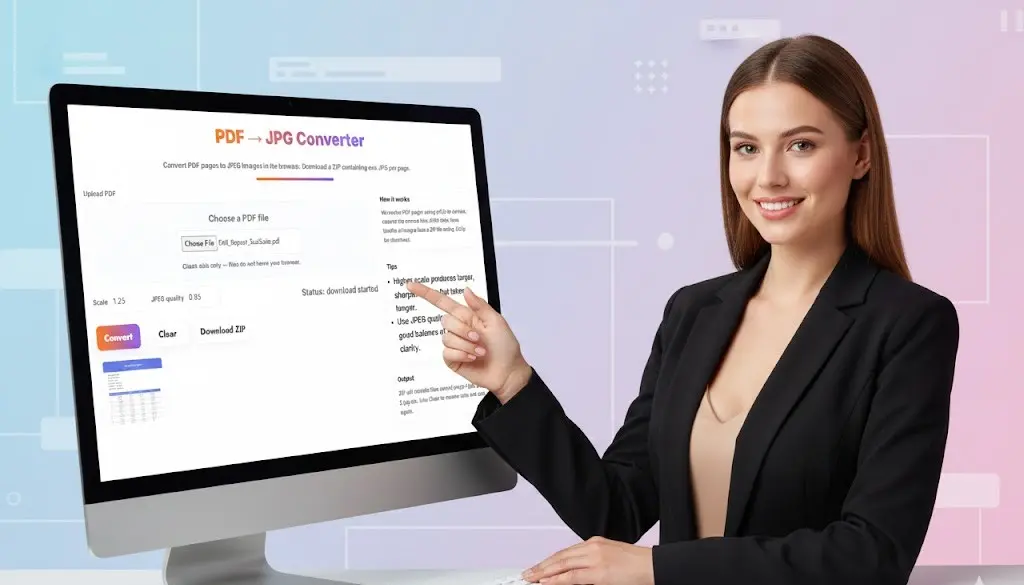
Start Converting PDF to JPG Now
Ready to convert your PDF documents to high-quality JPG images? Simply upload your PDF file above and experience the fastest, most secure way to extract PDF pages as JPEG images. No registration, no watermarks, completely free, and 100% private. Whether you need to convert a single-page PDF to JPG or extract dozens of pages from large documents, our powerful browser-based converter handles all PDF to JPG conversion needs with ease.
Frequently Asked Questions — PDF to JPG Converter
1. What does a PDF to JPG Converter do?
It extracts each page of a PDF and converts it into one or more high-quality JPEG images (one JPG per page). This makes it easy to edit, share, or use PDF pages as images.
2. Are my PDFs uploaded to a server?
No — Toolsuite’s PDF → JPG Converter performs conversion in your browser (client-side). Your file stays on your device unless you explicitly upload it somewhere else.
3. Which PDF files are supported?
Most standard PDFs are supported, including multi-page documents and scanned PDFs. Encrypted/DRM-protected PDFs that require a password will not convert unless you supply the password and the browser can open them.
4. Can I convert only specific pages (page range)?
Yes — choose the specific page(s) or page range you want to convert (if the tool UI shows page-range input). If not available, you can convert the whole PDF and discard unwanted images afterward.
5. What image formats and quality options are available?
The tool outputs JPEG images. You can usually select JPEG quality (for example 0.6–0.95) and scale/resolution to balance image clarity and file size.
6. Will the images be the same resolution as the PDF pages?
By default the tool renders PDF pages at a good quality for viewing and printing. You can increase the render scale for higher resolution images or lower it to reduce file size.
7. How are multiple JPGs delivered?
Generated JPGs are bundled into a single ZIP file for easy download, or offered individually depending on the UI. The ZIP contains page-1.jpg, page-2.jpg, etc.
8. Is text searchable after conversion?
No. Converting a PDF page to a JPG rasterizes the page into an image — text becomes part of the image and is no longer searchable or selectable. Use a PDF→Word or OCR tool if you need editable/searchable text.
9. Does the converter handle scanned PDFs and image-only PDFs?
Yes. Scanned or image-only PDFs convert the same way — pages render to images. If you need editable text from scanned pages, use OCR after conversion.
10. Is there a limit on PDF size or page count?
There’s no strict limit, but large PDFs (many pages or very high resolution) may take longer and use more memory. For very large jobs, consider converting in smaller batches.
11. Will the converted images contain watermarks?
No. Toolsuite does not add watermarks. The images are clean and ready for use.
12. Does conversion work on mobile devices?
Yes. The converter is responsive and works on modern mobile browsers (Chrome, Safari). Performance depends on phone/tablet resources for large PDFs.
13. How long does conversion take?
Conversion time depends on PDF size, page count, and your device. Small PDFs usually convert in seconds; multi-page or high-resolution files may take longer.
14. Can I crop or resize the JPGs after conversion?
This tool focuses on extraction. For cropping/resizing, use Toolsuite’s Image Compressor or Image Editor tools after conversion.
15. Is this tool free to use?
Yes — conversion is free and unlimited. No signup or subscription required.
16. Is it safe to convert confidential documents?
Yes — because conversion is client-side, files are not uploaded to a server. However, always use caution on public devices and ensure your browser/device is secure.
Related Tools and Directory
- Income Tax Calculator
- Tools Directory Overview
- Free Online tools Hub
- Finance & Tax Tools Hub
- Advance Tax Interest Calculator
- GST Calculator
- HRA Exemption Calculator
- TDS Deduction Estimator — Salary (Monthly Estimate)
- Income Tax Slab Comparison
- Gratuity Calculator
- EPF Contribution Calculator
- Simple EMI Calculator
- Advance Term Loan EMI Calculator
- Car Loan EMI Calculator
- Personal Loan EMI Calculator
- Home Loan EMi Calculator
- SIP Calculator
- SIP Goal Calculator
- CAGR Calculator
- XIRR Calculator
- SWP Calculator
- STP Calculator
- Free Lumpsum Investment Calculator: Maximize the Future Value
- CSV to JSON Converter
- QR Code Generator
- CSV to Excel Converter
- Base64 Encoder/Decoder
- Regex Tester
- JSON Formatter & Validator
- UUID Generator
- Strong Password Generator
- Lorem Ipsum Generator
- URL Encoder & Decoder
- HTML escape-unescaped tools
- JPG to PDF Converter
- Explore more tools for Finance & Tax and SEO on TaxBizmantra.com & CAMSROY.COM